ATO Client Agent Linking: A step by step to guide nominate an agent in online services for business
February 16, 2024

Hey everyone, I’m Michelle Knight from Little Miss Bookkeeping. In my recent YouTube video, I walk you through the process of nominating a registered tax agent or BAS agent in your online services for business. If you’d like to watch the video tutorial/walkthrough, you can see that here. Otherwise keep reading for the steps we go through in the video. Let’s get started!
Step #1: MyGov ID Setup (Assumed Completed)

First things first, make sure you’ve already set up your MyGov ID. I’m assuming you’ve got that sorted, so let’s move on to the next step in the process.
Step #2: Linking your MyGov ID to your ABN in Relationship Authorisation Manager

You will need to link your MyGov ID to Relationship Authorisation Manager (RAM). Log in with your MyGov ID, undergo the two-factor authentication, and you’re good to go. For demonstration purposes, I’ll use a dummy business name like “Beauty by Bruce Pty Ltd”.

Step #3: Logging into Online Services for Business

Now, let’s log into the online services for business. Remember, your MyGov ID, RAM, and online services for business are separate set ups however all will need to be set up so you can complete this process.
Accessing the Portal > MyGov ID Authentication > Navigate the Dashboard: Once you’ve logged in successfully you’ll be brought to your dashboard. Here you can navigate to Profile > Agent Details. This should bring you to a page where you should see your Tax and BAS agents details, if you have any in there already.
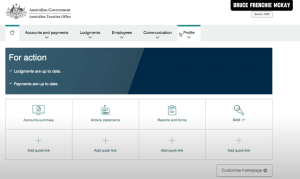
Another important note for Sole Traders and Individuals – you are not required to nominate your Tax or BAS agent. So if you cannot see the “Agent Nominations” section on your screen – that is the explanation as to why.
Step #4: Nominate Your Tax Agent and/or BAS Agent
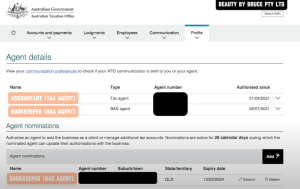
This is where you nominate your agent. Once you’ve found yourself on the agent details and nomination page you can find the “add” button. Locate the agent nomination section within the selected entity. Enter the required details of your chosen agent, whether by name or registration number. Review the entered information for accuracy before submitting the nomination. Once satisfied, confirm the nomination to complete the process.
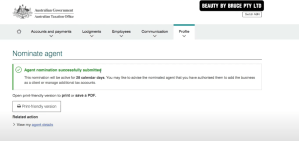
Remember, each entity does require its own agent nomination, so repeat this process for any additional entities you manage.
Step #5: Inform Your Agent About The Nomination
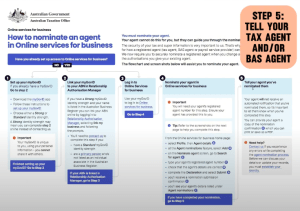
Don’t forget to inform your agent of their nomination – There’s no automatic notification from the ATO to your agent, so shoot them a quick message to keep them in the loop.
Bonus Tip: Troubleshooting – If you encounter any issues, reach out directly to the ATO for assistance. Unfortunately, your accountant or bookkeeper cannot help with this process.
And there you have it – a simplified guide to nominating a registered tax agent. If you have any questions, feel free to ask.

Follow us

Let’s get in touch!
CONTACT US
Nothing makes me happier than implementing time-saving tools and systems that help small businesses get ahead. Instead of being a cog in a large corporation, freelance consulting lets me be the adaptive Bookkeeper on the Sunshine Coast you need. Whatever your financial situation, I’ll help you find new approaches to cut unnecessary costs and alleviate undue pressure. If you’re ready to watch your business grow, let’s start a conversation
CONTACT US